
Week 10 of imaging class was about learning the remaining few tools and options of photoshop ,which leads to the complete learning of photoshop as a software.
- The first option we learnt was content aware fill tool:
- Content aware is used to remove a particular object or picture or a flaw from a picture.
- Place the picture- using polygonal lasso tool or, rectangular, optical marque tool select the portion you want to remove ,
- Then click shift+ backspace or go to edit menu select fill a drop down box will appear
- Select content aware
- Add feather effect for smooth disappearing
- And click ok or enter
- You will see the object disappeared.
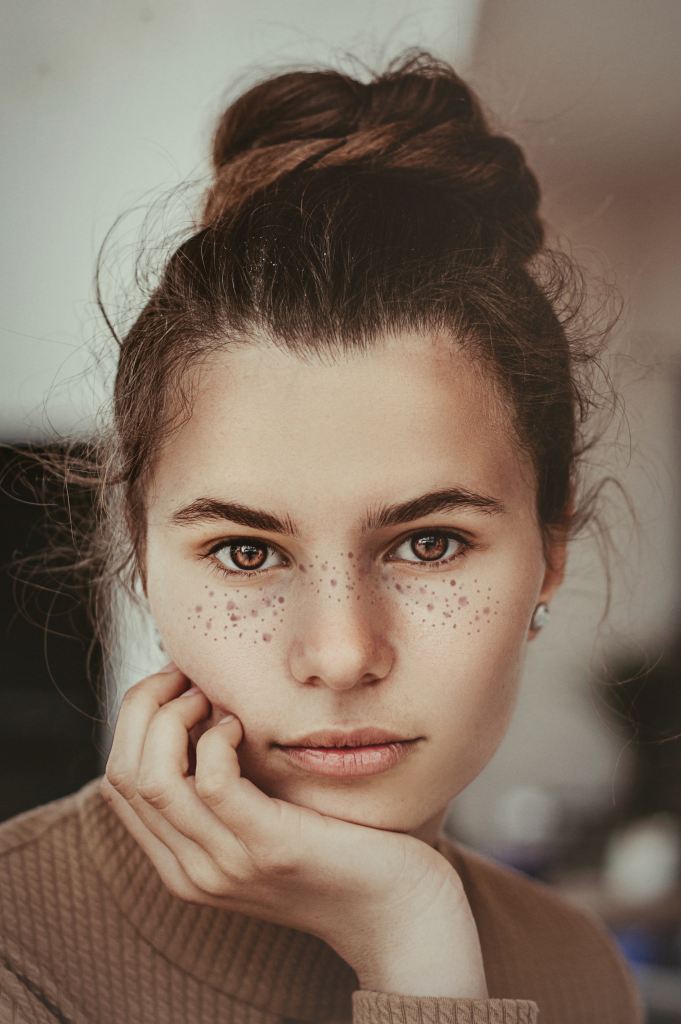

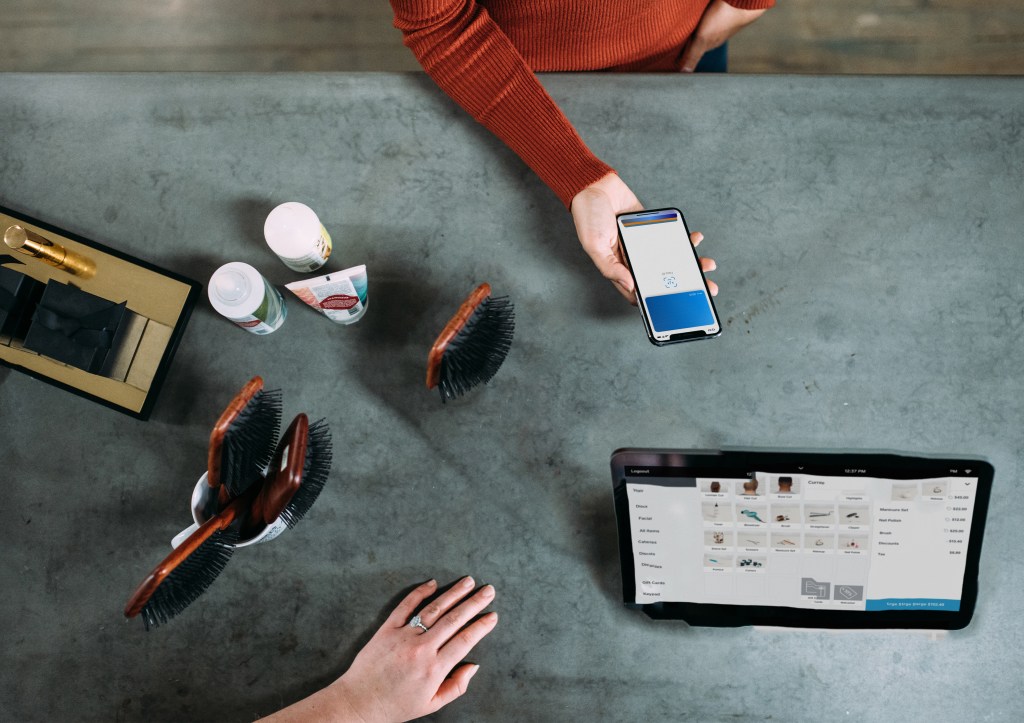
- Content aware move tool:
- Place a picture on a new layer
- Select the portion you want move
- Select the content aware move tool from the tool box and then
- And click enter or ok
- You will see the object moved from its position.

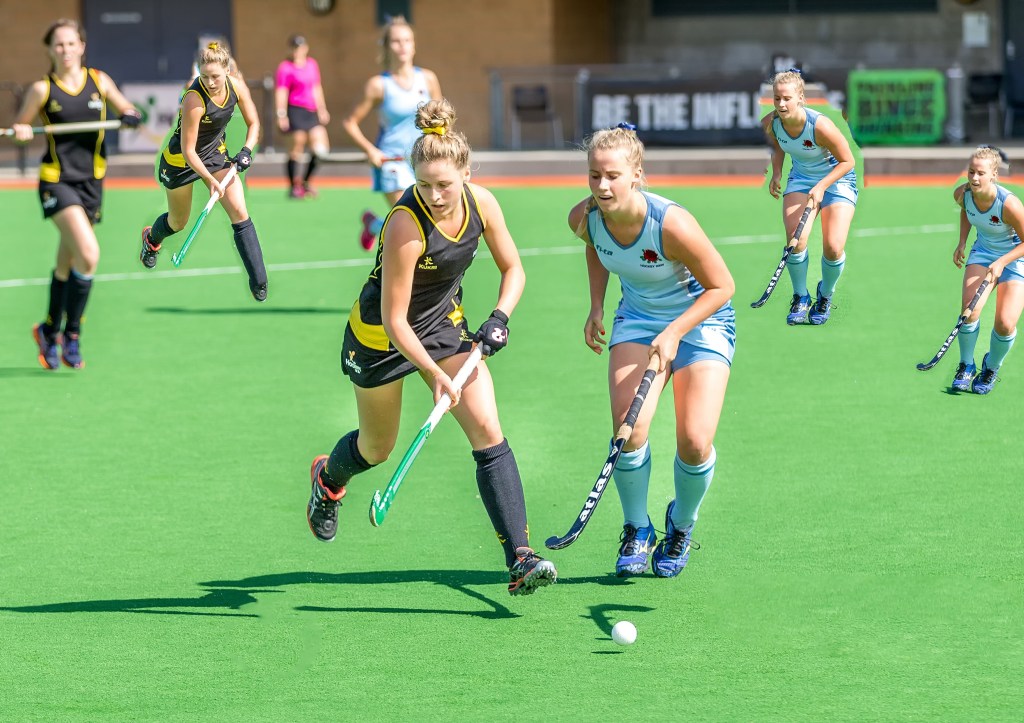
- Content aware extend tool
- It basically helps to duplicate and resize the the object or part of the image you want,
- Place a picture select the portion you want to duplicate and resize,
- By clicking on the same content aware move tool , you will see a drop down menu in the menu bar with 2 options move and extend,
- By clicking extend
- And clicking enter you will the selected portion duplicated ,

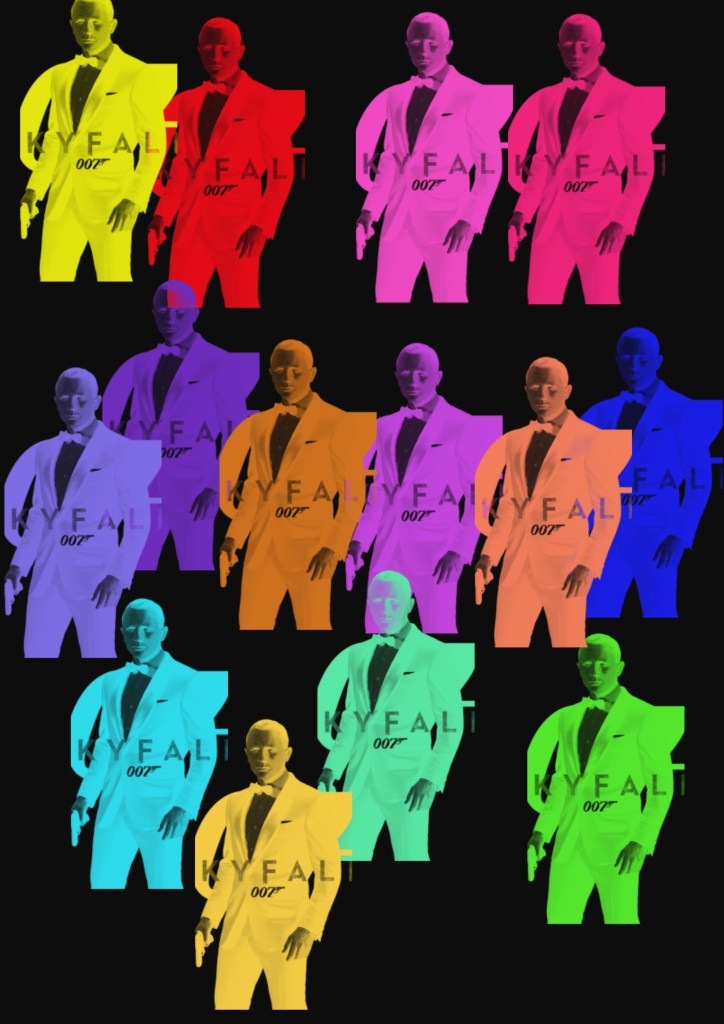
- How to create custom brushes
- Creating a custom brush using an object :
- On a new layer make a design using objects and shapes,
- Clickon ctrl key + the layer thumbnail,
- You will see the object being selected,
- Go to the edit menu- select define brush preset option ,
- Name the brush as you want and click ok
- The custom brush will be created and stored by the name you have given in the brush panel



- Creating a custom brush from a picture
- Place an image on a new layer,
- Crop the portion you want to turn into a brush
- Press ctrl A – the image will be selected
- Go to edit menu
- Select define brush preset
- Name the brush you want and click ok
- The picture will custom into a brush and will be seen in the brush panel.

- Converting text into a custom brush :
- Type the text you want to convert into a brush,
- Press ctrl key + the layer thumbnail
- You will see the text selected
- Go to the edit menu
- Select define brush preset
- Then name the brush and click ok
- The text will be converted into a custom brush.

I learnt a lot through these tools and options, which gave me a better understanding as to how to add beauty to your artwork,
I also gained a lot of confidence in using this software , and now love to explore and create new artworks.

 Sanjana blogs