
Week 7 was about the introduction to some new features and tools of adobe photoshop.
CLASS DISCUSSION:
We were introduced to some new tools such as:
- Cropping tool
- Ruler
- Guides
- Single row marque
- Single column marque
- Lasso tool
- Polygonal lasso tool
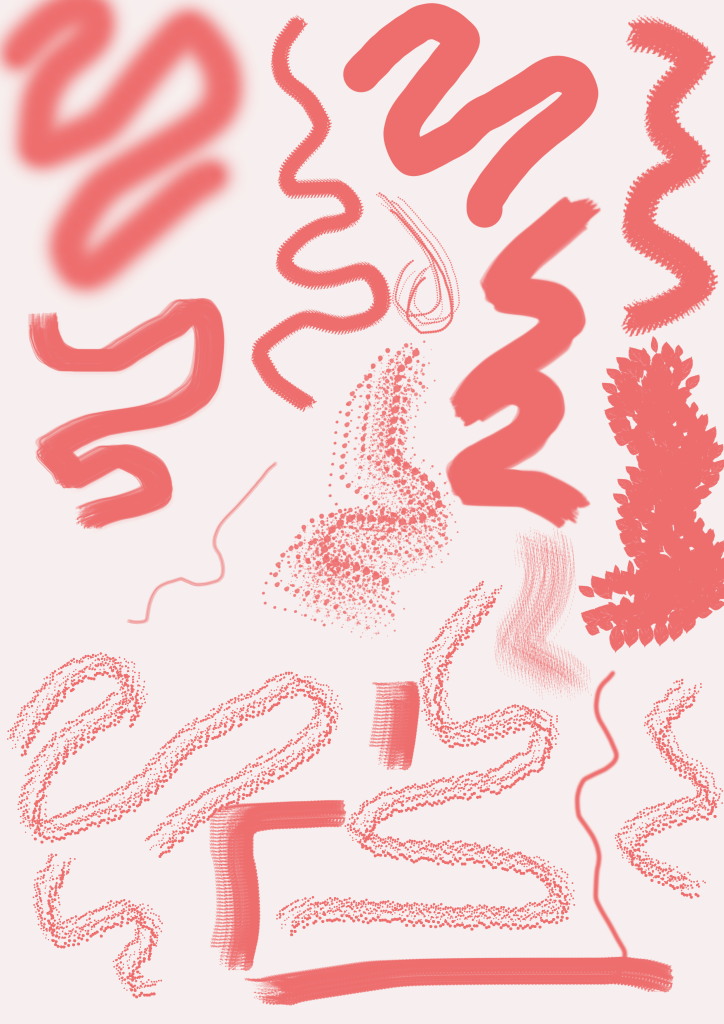
- Brush tool and its type
We learnt a few types of effects that can be given to photographs or images for a collage.
Grid collage to a photograph
Uneven puzzle effect to squares of a grid of a photograph
Changing the background by using 2 pictures and polygonal lasso tool
Changing the colour effects and hue saturations.
CROPPING AN IMAGE:
Place an image on the canvas by place embedded in file menu
Then select crop tool
Select the portion you want to keep in that picture
Check the delete cropped pixels for clear cropping and
Click enter.
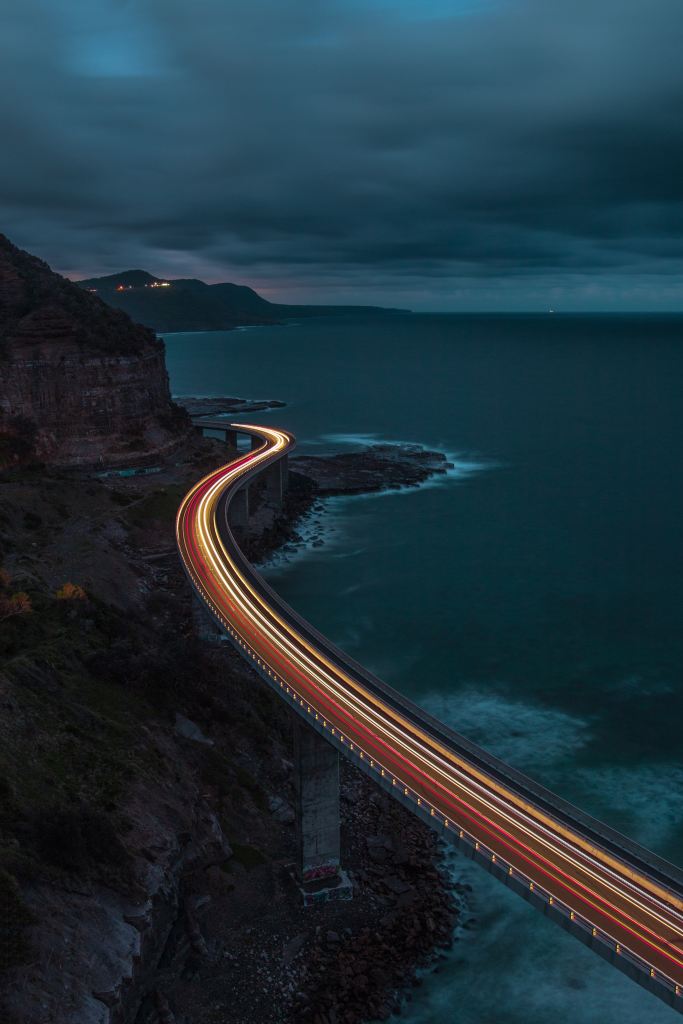

Set guide lines to a picture
Place a picture on the canvas
Set the ruler scale by short cut key ctrl+r
Go to view menu
Select new guides
Add horizontal and vertical guides by adding the distance you want
Eg: 33%, 67%,33%
Don’t forget to put the percentage sign while mentioning the guides measurement.
And you get your guides grid on you picture.
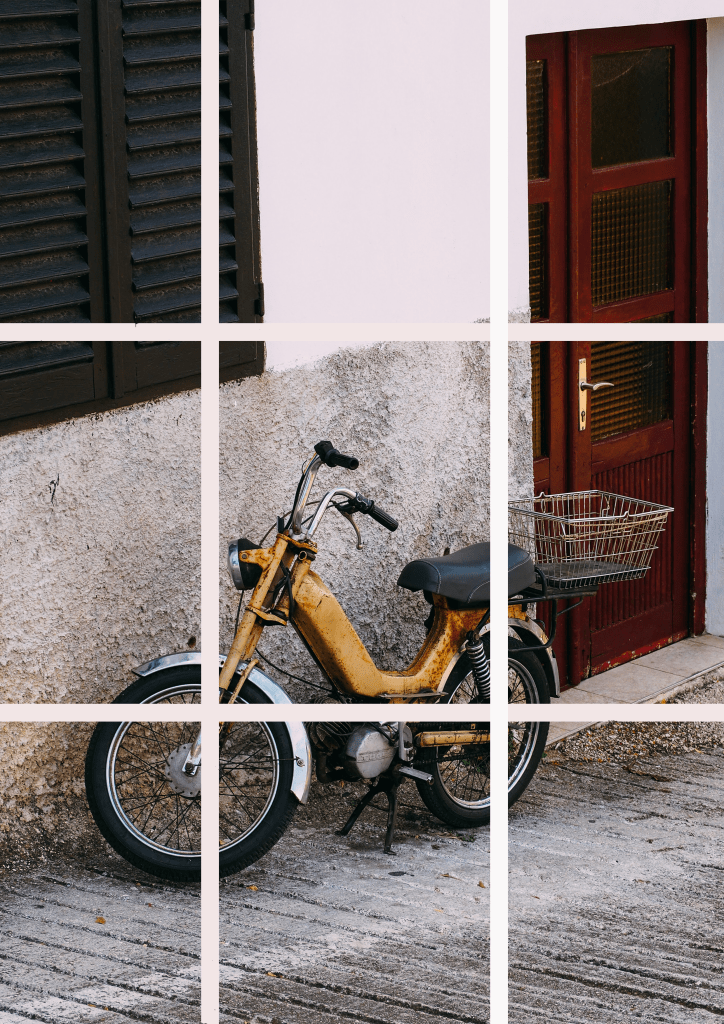
PUZZLE EFFECT COLLAGE TO A PICTURE:
- Place a picture on the canvas
- Set guide lines accordingly
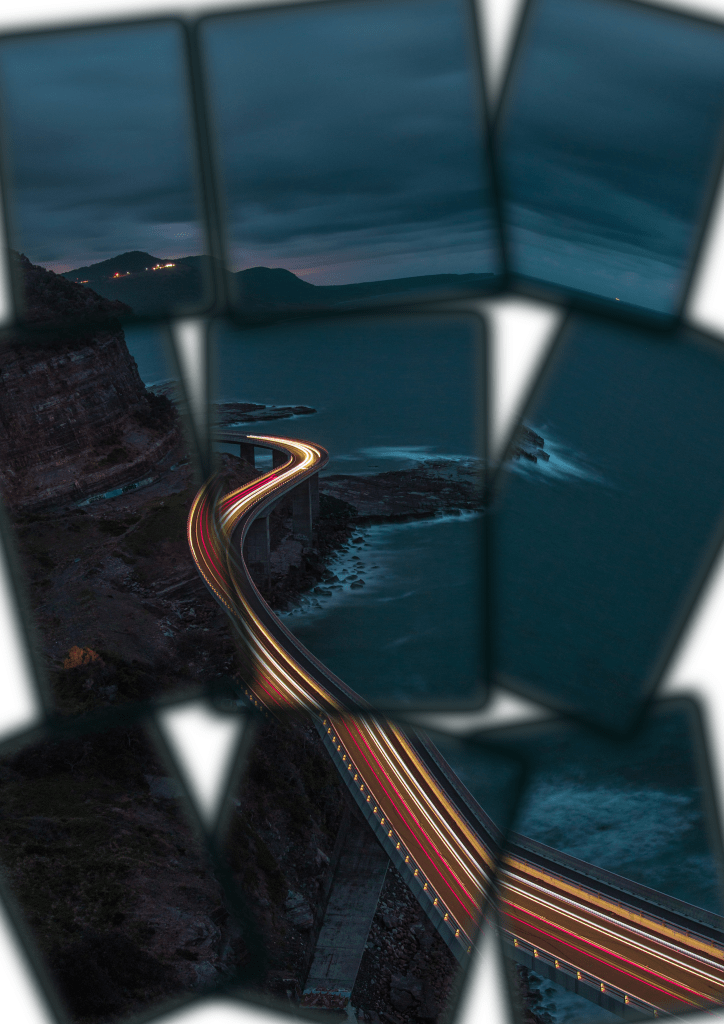
- Select each box of the guides grid by using rectangular marquee tool and then copy the selected area to a new layer by shortcut key ctrl+j
- Do this and repeat the same for all the squares
- Then hide the main picture in the layers
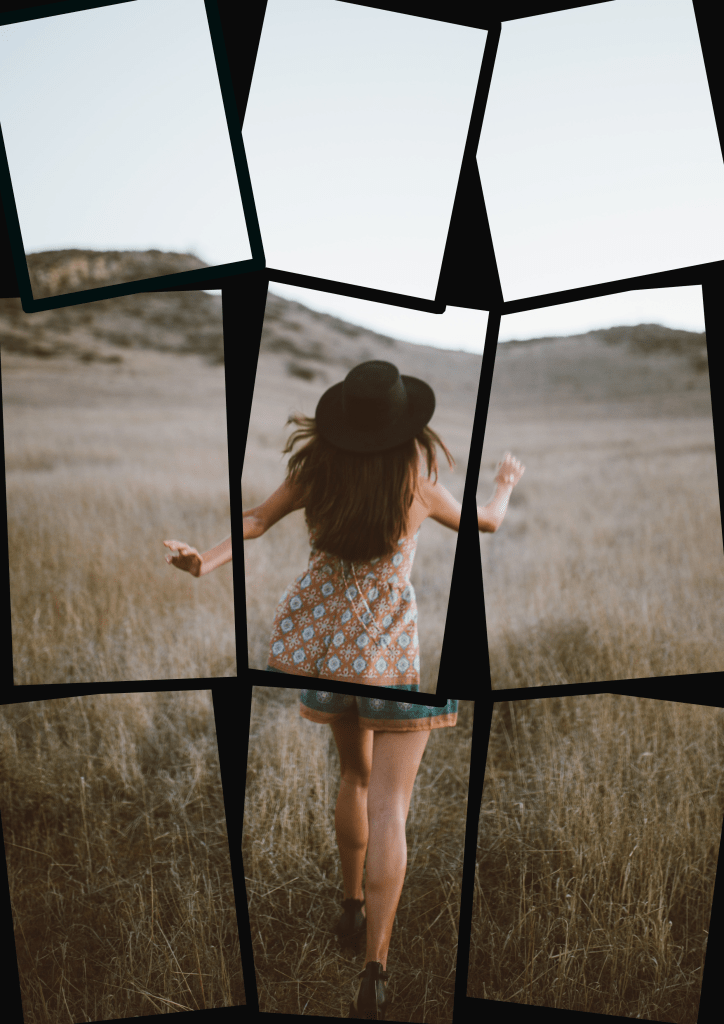
- Individually then go to each layer which has the copied squares and click ctrl +t for transform and rotate the squares in angles.
- You can then add a background colour or add borders to each squares.
LASSO TOOL– Lasso tool is one of the advance selection tool , it allows you to make freehand selections.
POLYGONAL LASSO TOOL– is also one of the advance selection tool, it also helps in geometric selections and works as a pen tool of adobe illustrator.
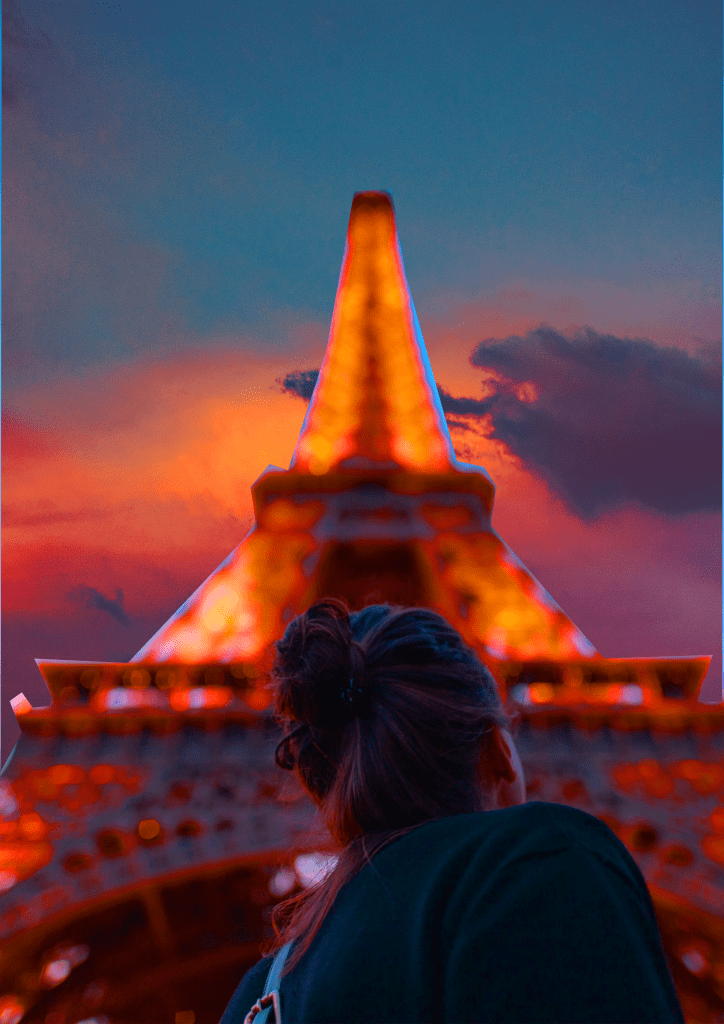
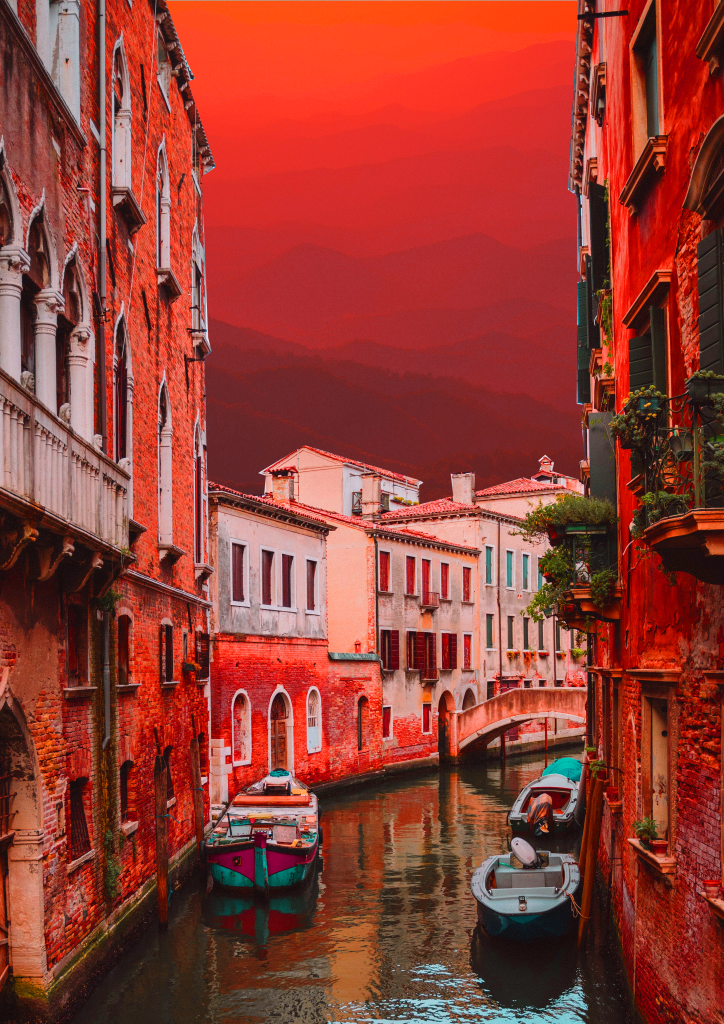
Changing background of an image and replacing with another picture:
Place an image on the canvas using place embedded
Using polygonal lasso tool select the portion of the picture you want to crop
Then delete the selected portion
Add a new layer and place another picture you want to merge with,
Rearrange the layers
You can then change hue saturation, shortcut key ctrl+ u
And you can merge the colour combinations.
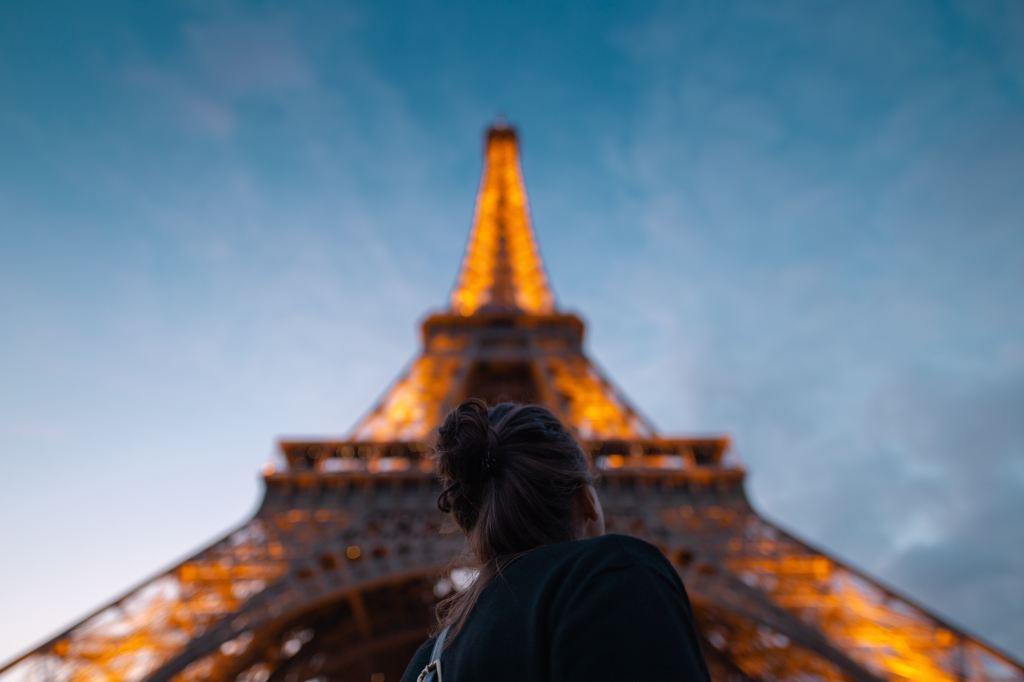
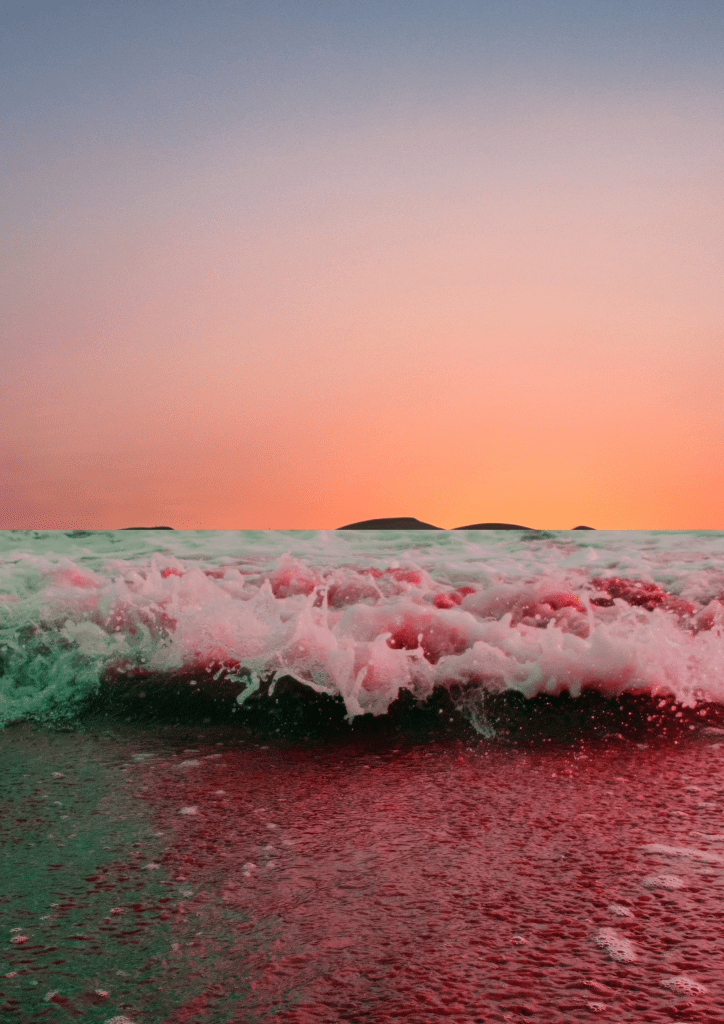
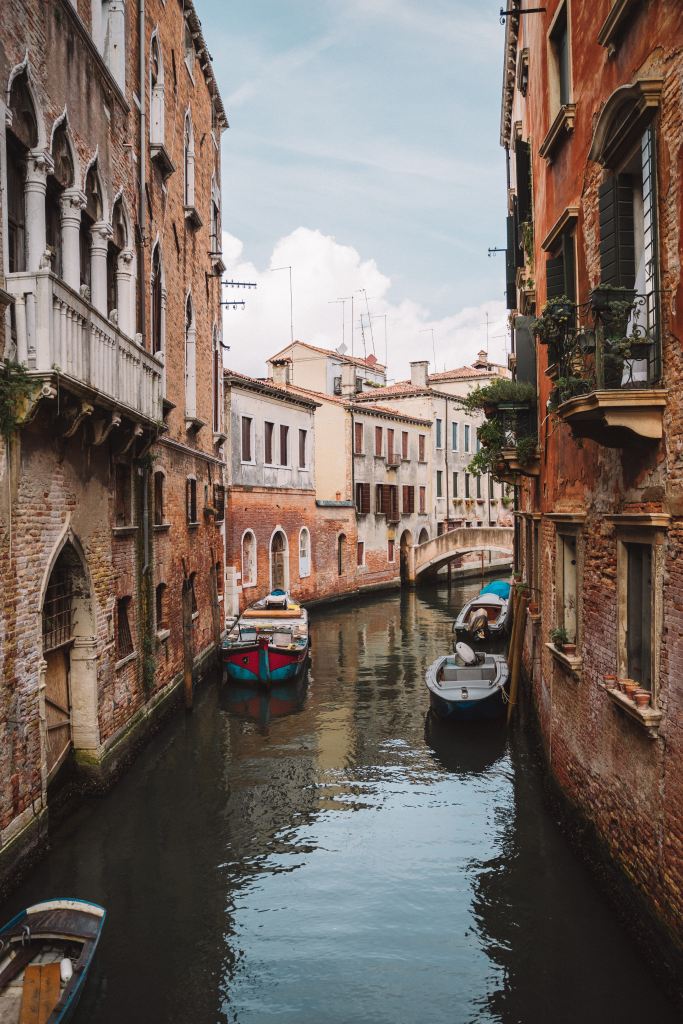
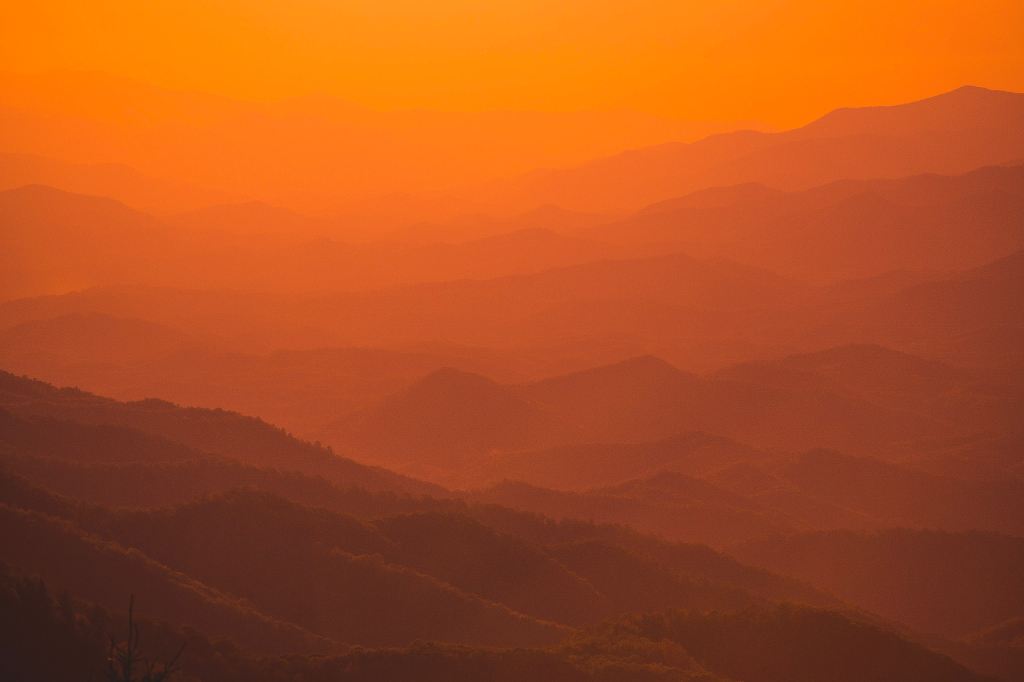
the 2 original images 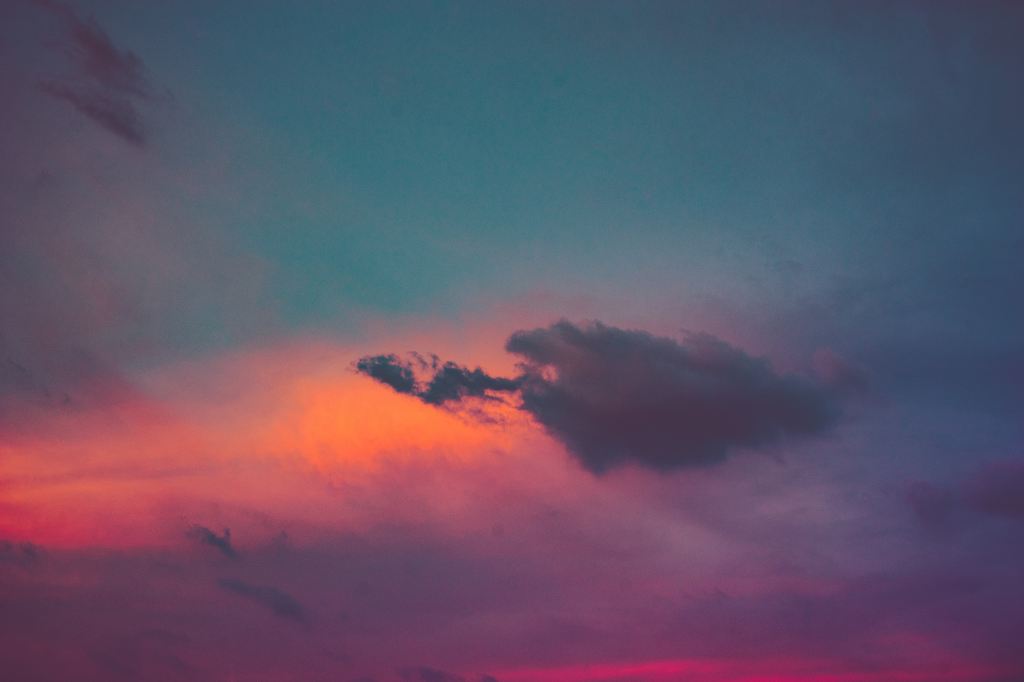

BRUSH TOOL:
We explored the brush tool, the different types, styles and sizes. we understood the different textures of the brush and how they work.
reflection: All in all I loved exploring and learning all the advance features and concepts so far , and would love to create work of quality using these learnings.

 Sanjana blogs